Text to speech for iPhone, done properly
Turn long articles, newsletters, and PDFs into narrated audio that plays in the podcast app already on your iPhone, with the screen locked.

Where iPhone read-aloud runs out
Speak Screen is a good tool for a paragraph or a short page. A saved 4,000-word essay is a different job.
Plays with the screen locked
Episodes in a private feed keep playing in your pocket. No keeping the app open, no screen waking up on every notification.
A queue, not a page
Every converted article lands in a private RSS feed you subscribe to once. New items show up as episodes, in the order you saved them.
Narration tuned for long pieces
Headers, block quotes, and footnotes come through as structure instead of one flat stream. Pick a calm, sharp, or documentary UK narrator.
Newsletters and PDFs too
Forward a newsletter or drop in a PDF. It goes through the same narration pipeline as a saved web article.
Speed you control
Skip, rewind 15 seconds, or push to 1.8x in the player you already use. Your speed setting stays with that app.
No ads in the feed
The MP3 output is clean. What you queued is what plays, nothing inserted before or after.
Three ways to hear text on your iPhone
Start with the free one. Move down the list when your reading gets longer.
-
1
Turn on Speak Screen (free, 2 minutes)
Open Settings, Accessibility, Spoken Content. Switch on Speak Selection and Speak Screen, then download an enhanced voice. Swipe down with two fingers from the top edge and the page reads aloud. Good for emails and short web pages.
-
2
Use Listen to Page in Safari
Tap the aA menu in the address bar and choose Listen to Page. It reads the article in Safari and works fine for a single piece you are about to walk away from. It does not keep a backlog for you.
-
3
Send everything to a private podcast feed
Save a link or forward a newsletter to heartheweb, then paste your private RSS URL into Apple Podcasts or Overcast once. Every article after that is an episode. NOW PLAYING: narrator-calm, format mp3, duration 8m42s.
For hands-free reading on the move
A 4,000-word essay takes about 16 minutes to read and a little over 25 minutes to hear at normal speed. That fits a walk to the station. Three articles absorbed in the time it took to make coffee is the target, and it only works if the audio keeps going when the screen goes dark. On an iPhone that means a real podcast player with lock screen controls, not a read-aloud toggle that stops when the display sleeps.
- Lock screen controls: play, pause, skip, rewind 15 seconds
- Works with AirPods, Bluetooth headsets, and CarPlay through your podcast app
- Queue order stays yours, newest first or reordered by hand

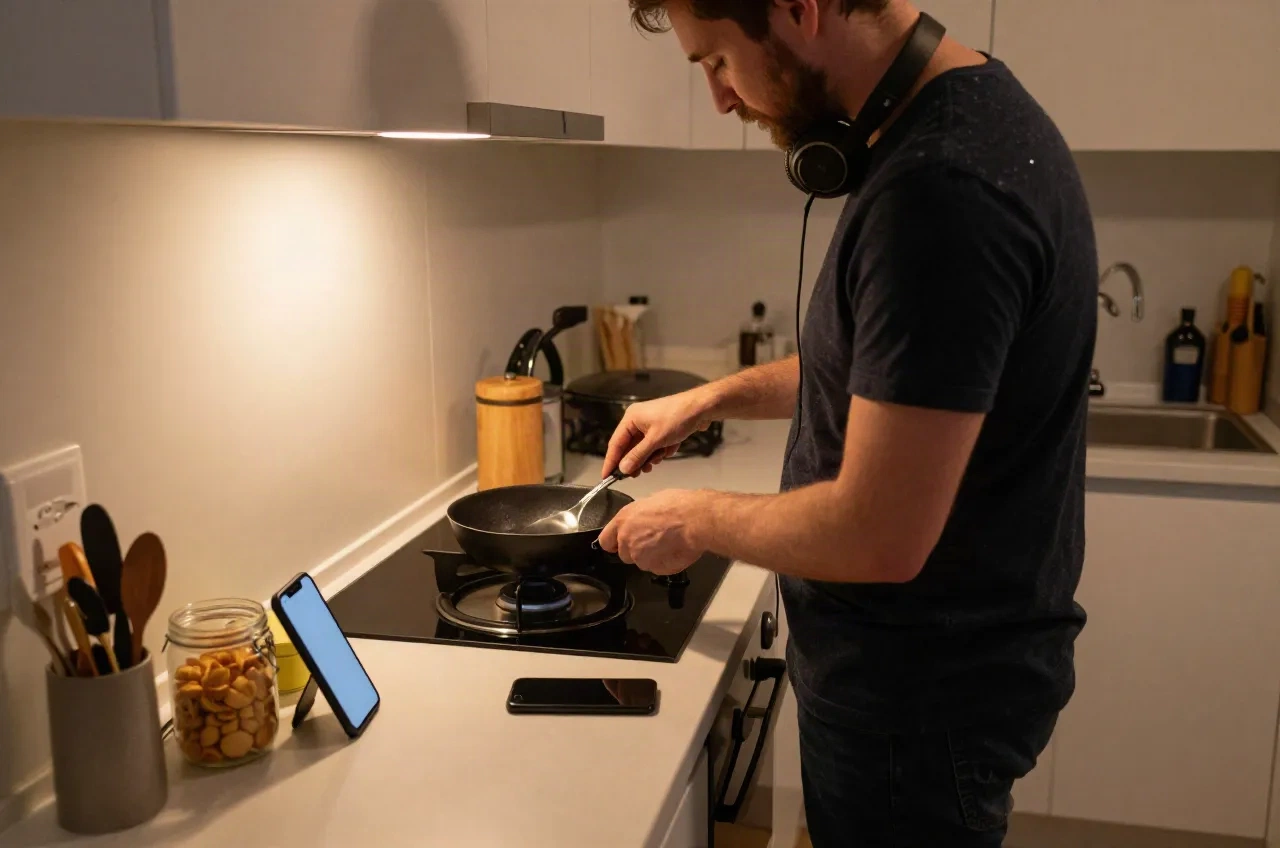
Listen while you cook, clean, or drive
Your reading list is a graveyard, ours was too. The backlog does not shrink because you meant to read it; it shrinks when it fits into the minutes you already spend doing something else. Cooking dinner, folding laundry, a 75-minute drive. Put the iPhone on the counter with the screen locked and let the queue run. When you come back to the screen, the article is already finished.
- Works from a locked, pocketed, or propped-up iPhone
- Forward newsletters the night before, hear them the next morning
- Drop in a PDF and it joins the same queue
Audio that works when reading is hard
Some readers cannot rely on a screen for a few weeks, or at all. A temporary eye injury, low vision, a long day of reading for work that leaves nothing for the evening. VoiceOver remains the right tool for operating the iPhone itself. For the long articles, narrated audio in a podcast app gives you a calmer way to take in information, with the same narration quality for every listener and no separate lower tier.
- Same narration pipeline for every listener
- Playback controlled from the lock screen and headphone buttons
- Sign-up and account pages built to work with screen readers

Which text to speech route fits your iPhone
Apple's built-in tools win on price and simplicity. Speechify wins on app polish and range of documents. heartheweb wins when the job is a long-article queue.
| Feature | Built-in Spoken Content | Speechify | heartheweb |
|---|---|---|---|
| Cost | Free | Free tier, Premium $29/mo or $139/yr | Start free, flat monthly subscription after |
| Best for | Short pages and emails | PDFs, documents, and web pages in one app | Long articles, newsletters, and PDFs as a queue |
| Keeps playing with screen locked | Often stops in many apps | Yes, inside its own app | Yes, in any podcast app |
| Voices | Apple system voices | 200+ on Premium, 10 on free | Calm, sharp, and documentary UK narrators |
| Backlog queue | No | In-app library | Private RSS feed, one episode per article |
| Extra app to install | No | Yes | No, uses Apple Podcasts or Overcast |
Text to speech on iPhone, answered
Does text to speech for iPhone come built in?
Can my iPhone read a long article while the screen is locked?
How do I get a web article into Apple Podcasts?
What is the best text to speech app for iPhone?
Is there a free option?
Does it work for people with low vision?
How fast can I listen on an iPhone?
Put your reading list in your ears
Start free. No credit card required. Send one article today and hear it before your next commute.